
Set up an email signature in Outlook on the Web (Office 365)
Log in to your Outlook Web App at http://outlook.office.com/.
Microsoft Outlook Mobile App Quick Guide
Use these steps to create or update your email signature directly in the Outlook mobile app. |
1. Open Your Profile
Open the Outlook app. From your Inbox, tap your profile/account icon in the upper-left corner.
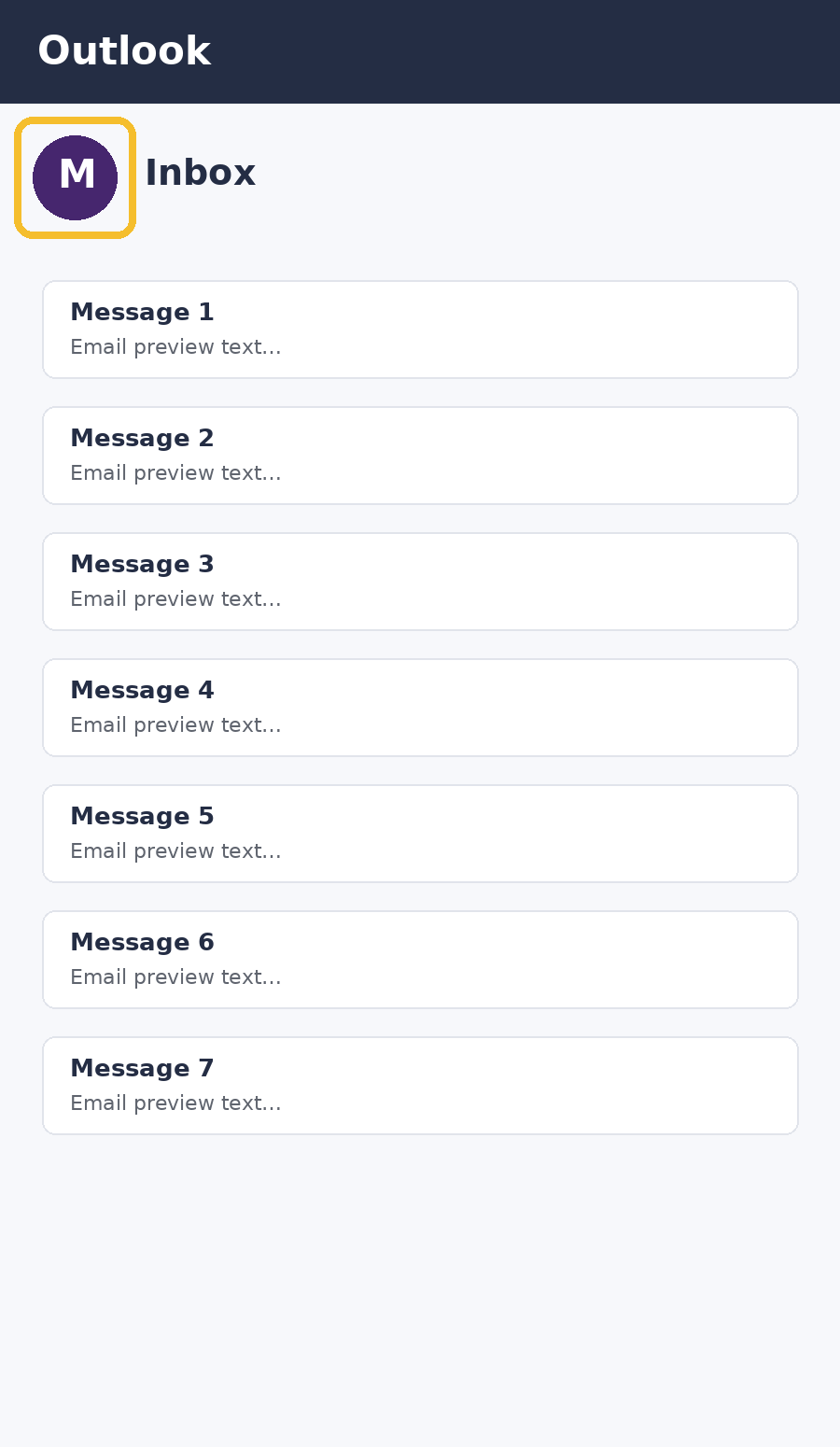
Example app view — appearance may vary slightly by device or Outlook version.
2. Open Settings
From the profile/navigation panel, tap the Settings gear located in the bottom-left corner.
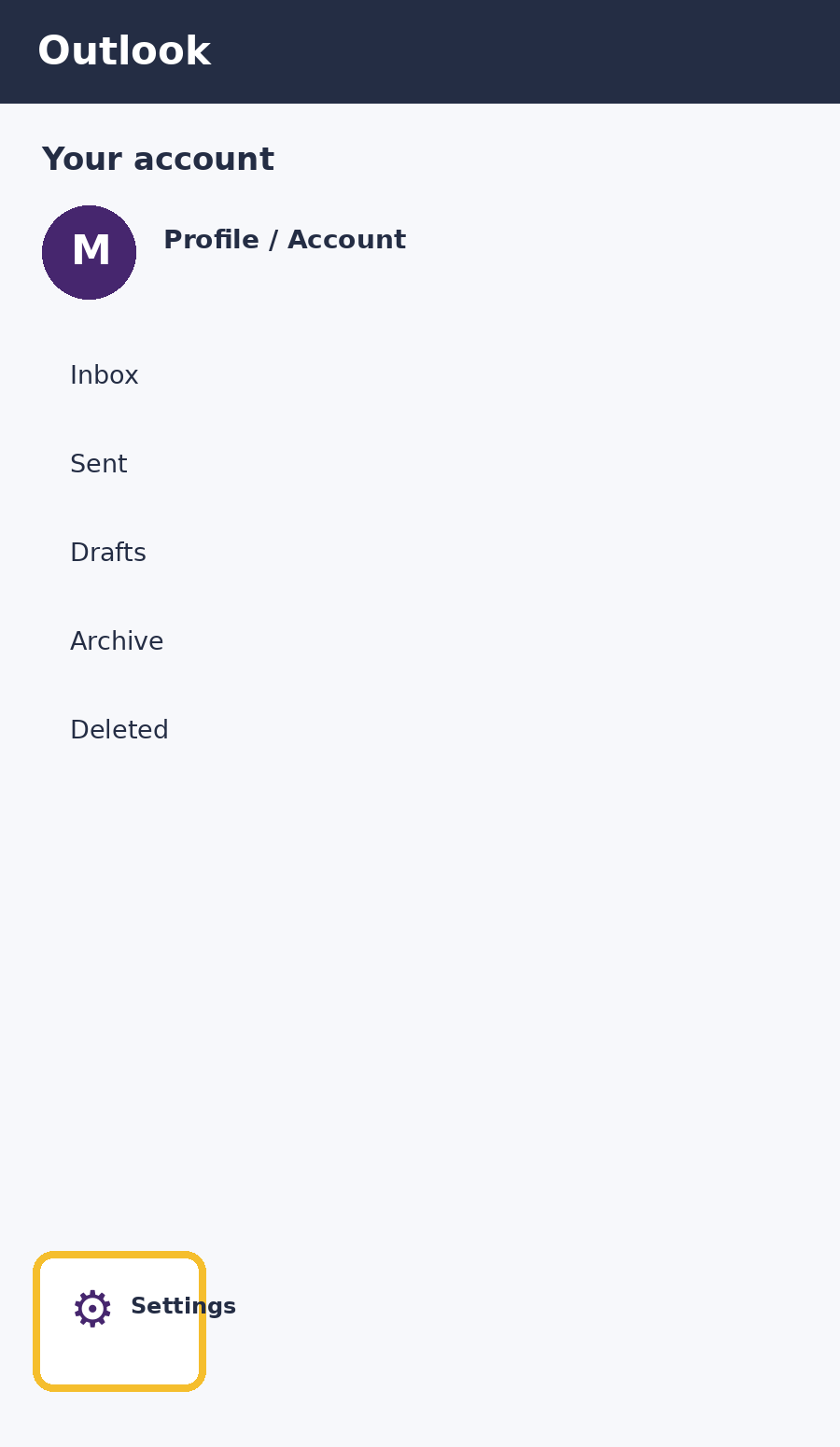
Example app view — appearance may vary slightly by device or Outlook version.
3. Select Signature
In Settings, scroll if needed and tap Signature.
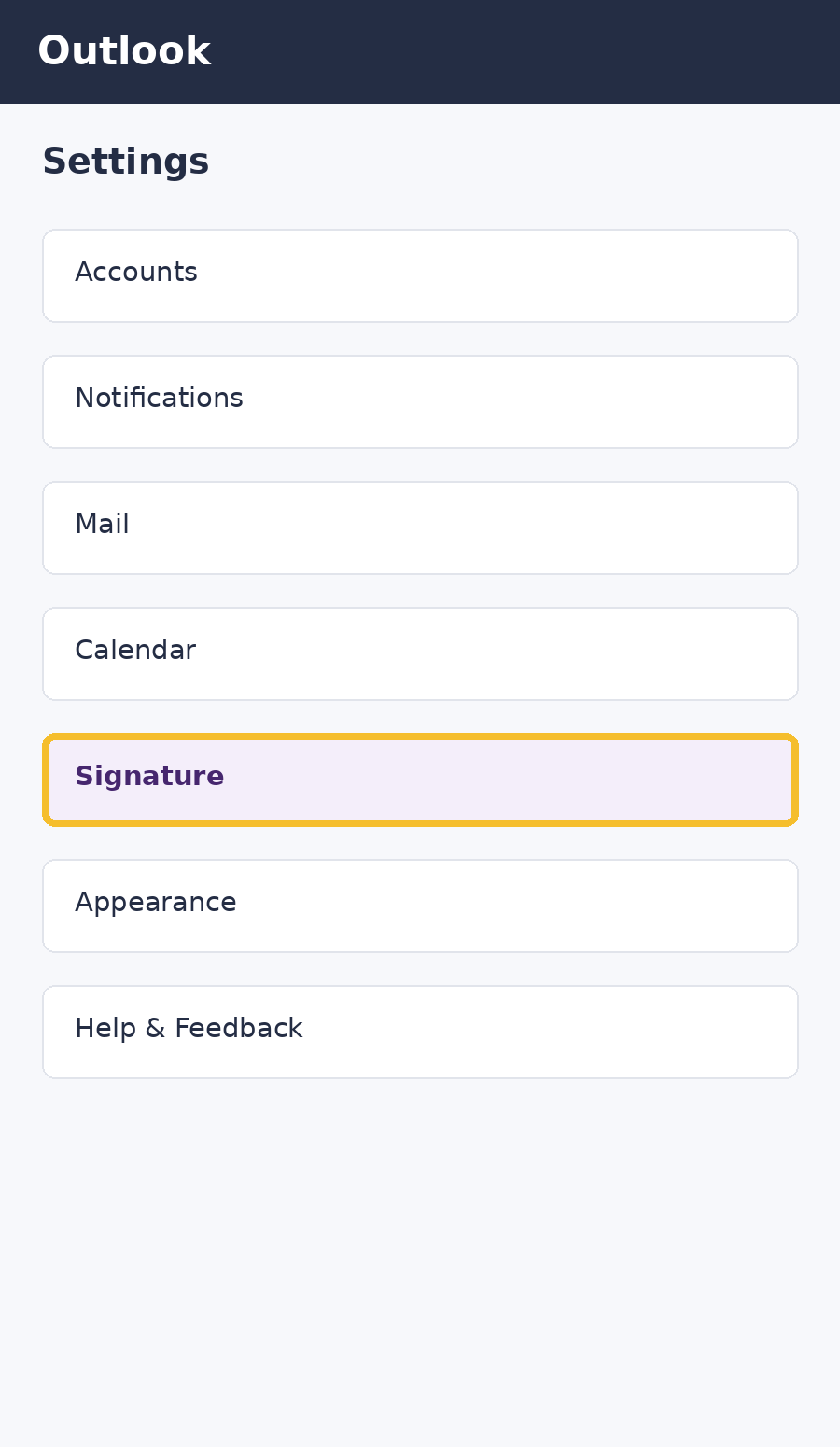
Example app view — appearance may vary slightly by device or Outlook version.
4. Add Your Signature
Tap Add signature. Enter or paste your signature, format it as needed, and save your changes.
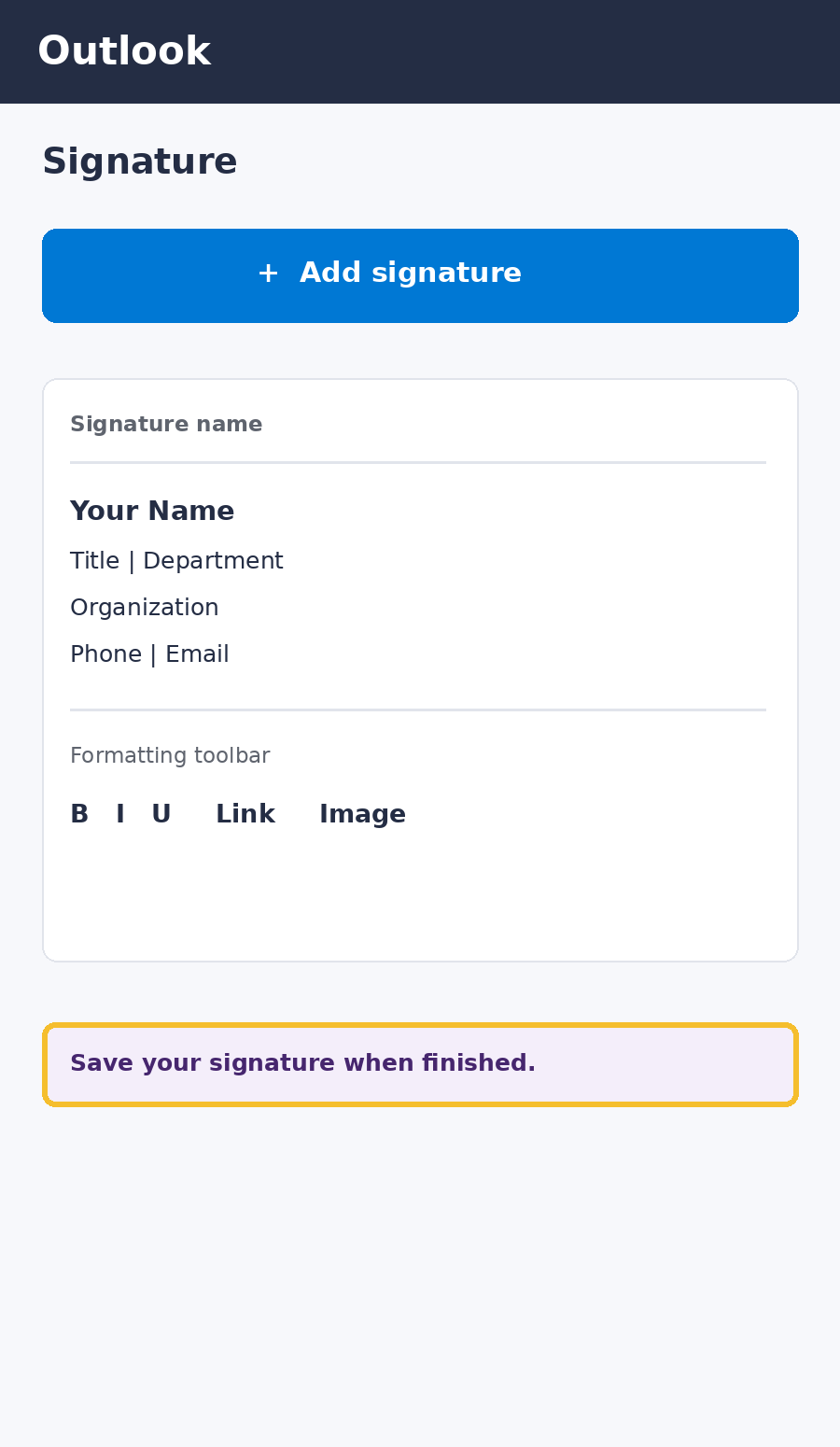
Example app view — appearance may vary slightly by device or Outlook version.
Quick Tip
After saving your signature, create a new email to make sure it appears and is formatted correctly. If you use Outlook on more than one platform, you may need to configure the signature separately on each version.