
Getting Started with Outlook (Outlook on the Web)
Purpose
Outlook on the Web (OWA) allows you to access your LSUA email, calendar, contacts, and tasks from any web browser using your Microsoft 365 account. [support.mi...rosoft.com], [microsoft.com]
Sign In to Outlook
Step 1: Open Outlook on the Web
- Open a web browser.
- Navigate to https://outlook.office.com. [outlook.office.com], [support.mi...rosoft.com]
Step 2: Sign In
- Enter your LSUA email address.
- Select Next.
- Enter your password.
- Complete any Multi-Factor Authentication (MFA) prompts if required.
- Select Sign In. [support.mi...rosoft.com]
Explore the Outlook Interface
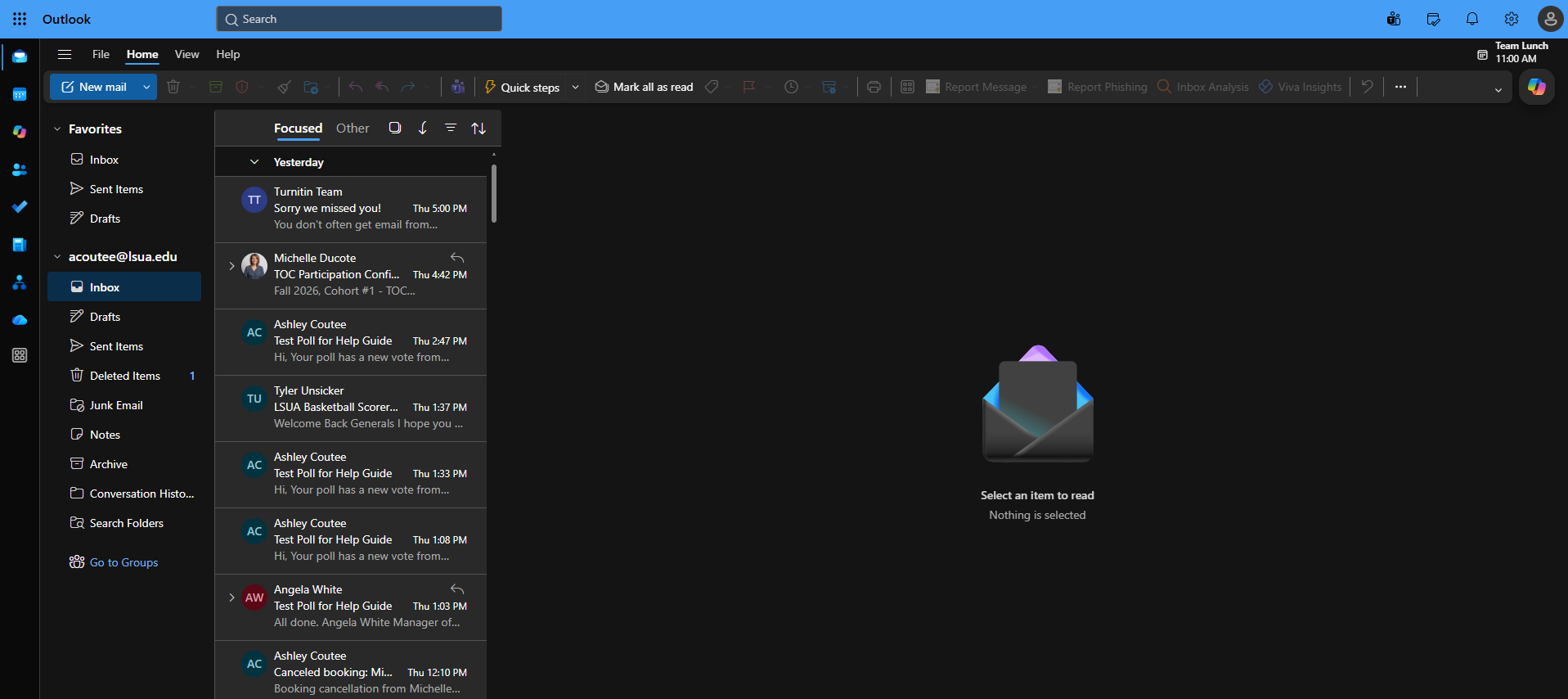
After signing in, you will see the Outlook home screen.
 |
Read and Manage Email
Open an Email
- Select a message from your Inbox.
- The message opens in the reading pane.
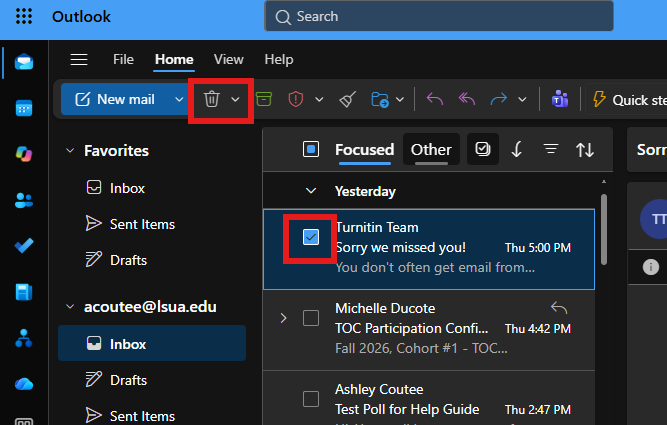
Delete an Email
- Select the email.
- Choose the Delete icon.
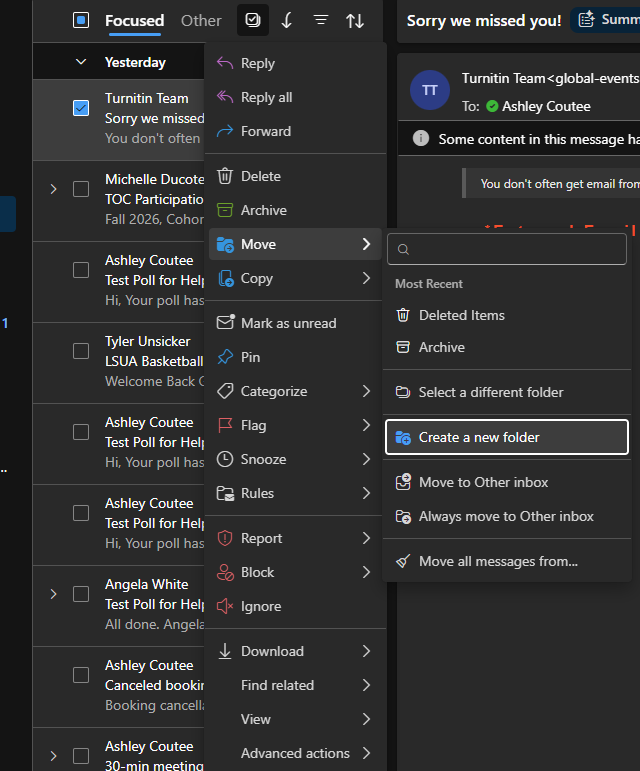
Move an Email
- Right-click the message.
- Select Move.
- Choose a destination folder.
Compose and Send an Email
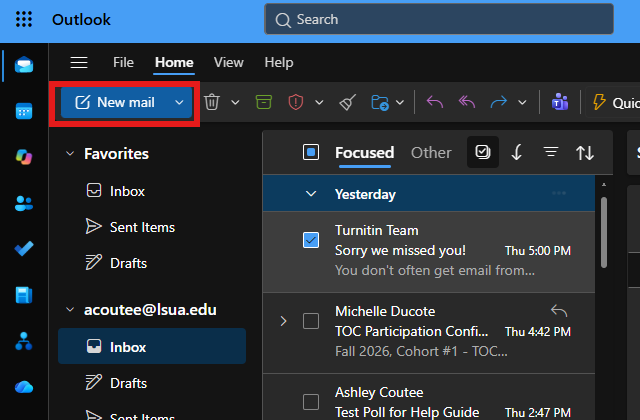
Step 1: Create a New Message
- Select New Mail.
Step 2: Complete the Message
- Enter recipient email addresses in the To field.
- Add a subject.
- Type your message.
Step 3: Send the Email
- Select Send.
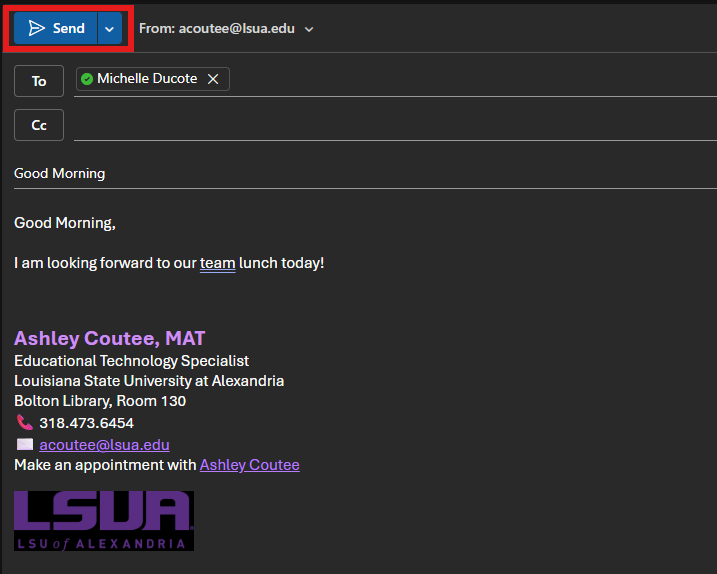
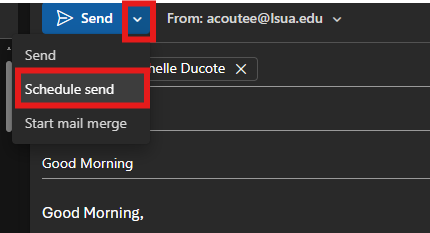
- You can also schedule the email to send at a later time/date.
- Select the drop down arrow next to the send button.
- Select Schedule send.
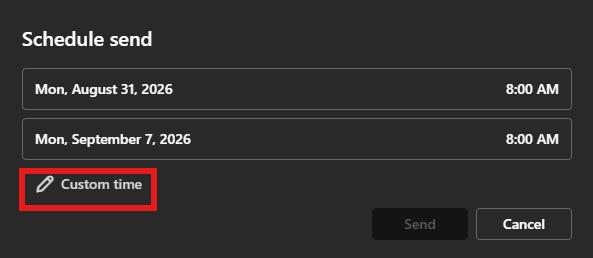
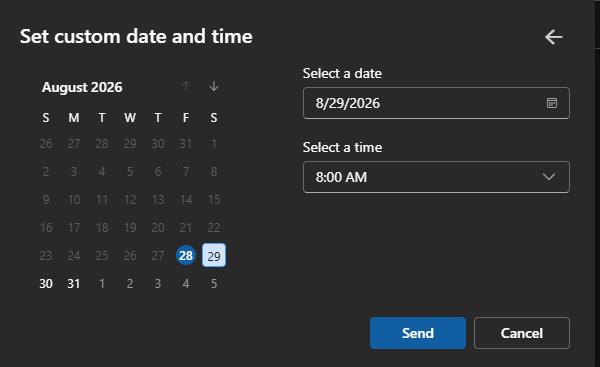
- You can select one of the date/time options given, or select Custom time below those options to enter a specific time and date of your choosing.
- Select Send.
Attach Files to an Email
Step 1: Start a New Email
- Select New Mail.
Step 2: Add an Attachment
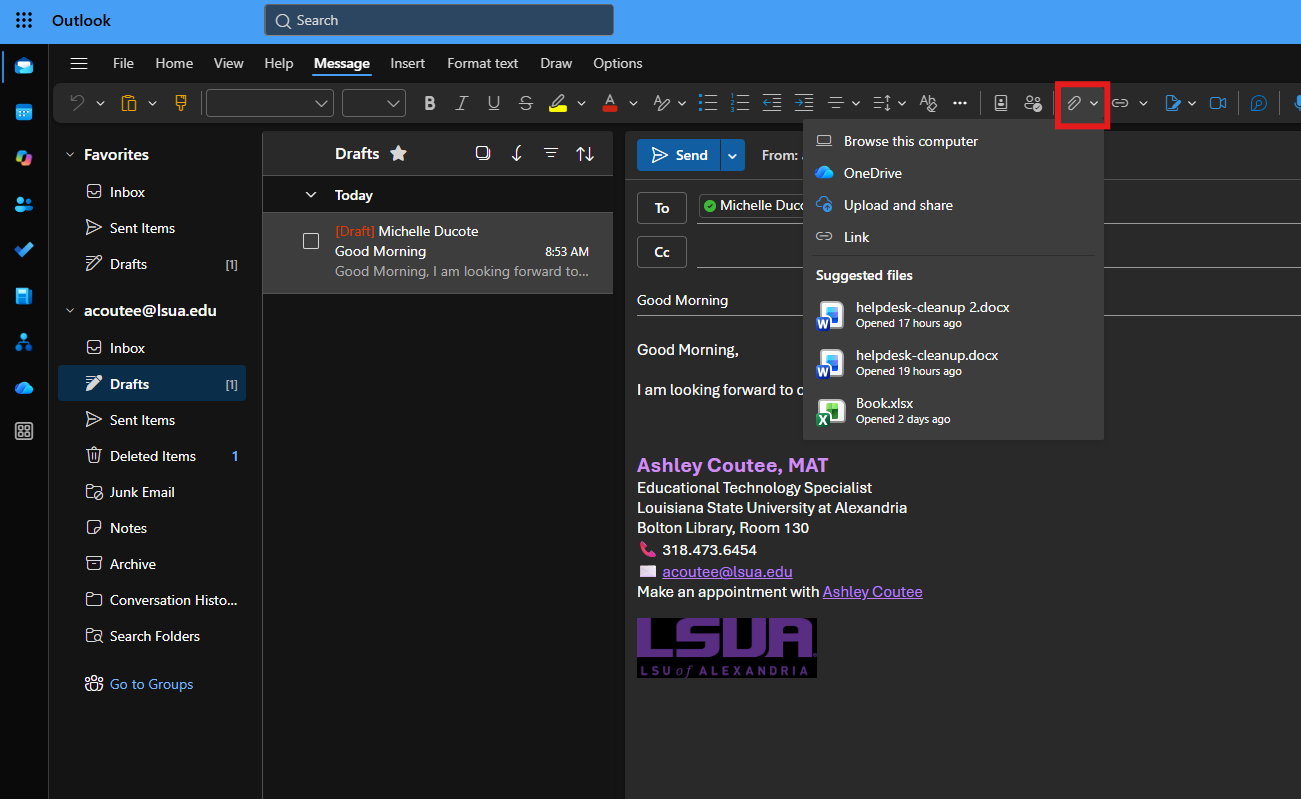
- Select Attach File.
- Choose:
- Browse This Computer
- OneDrive
Step 3: Send
- Select the file.
- Select Open.
- Select Send.
Use the Calendar
Create an Appointment or Meeting
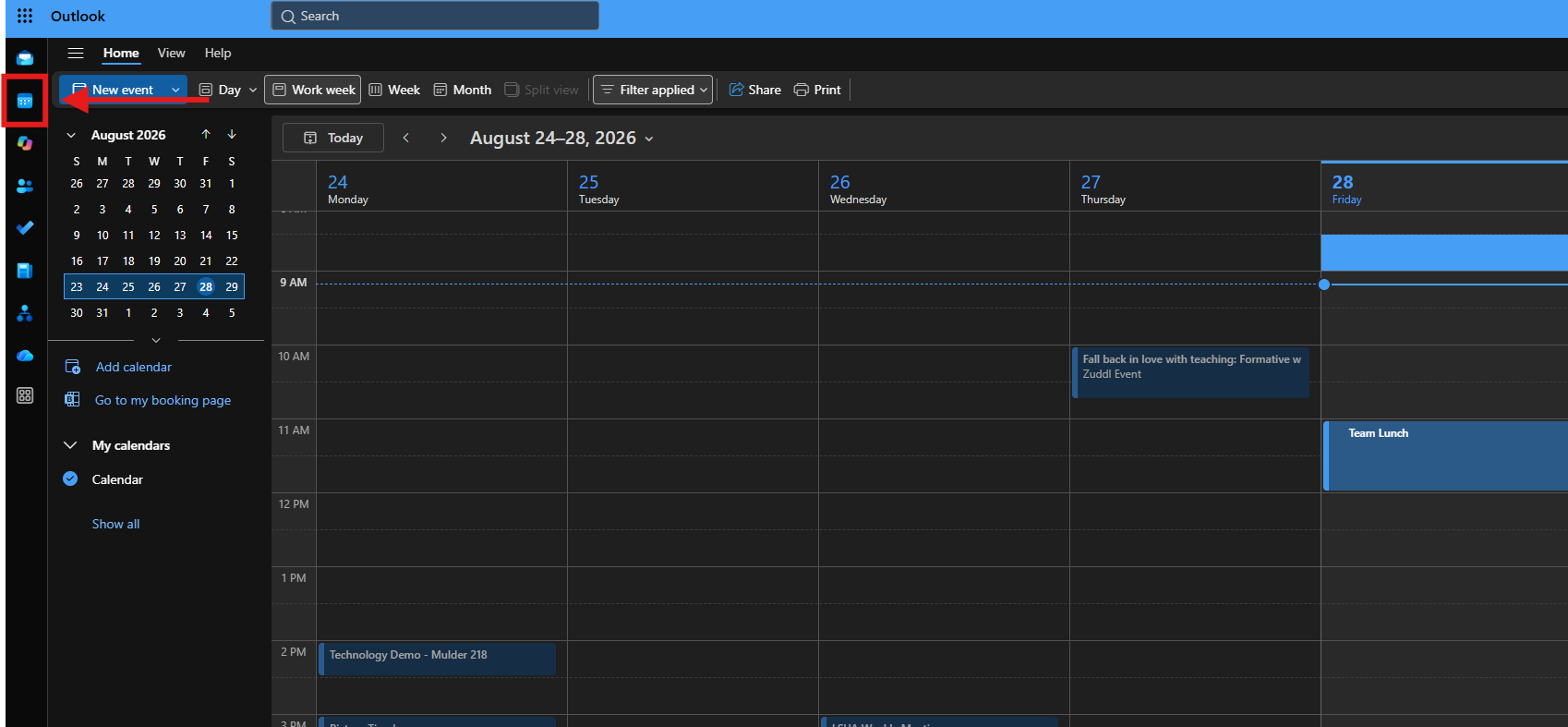
- Select Calendar from the left navigation menu.
- Select New Event.
Enter Event Details
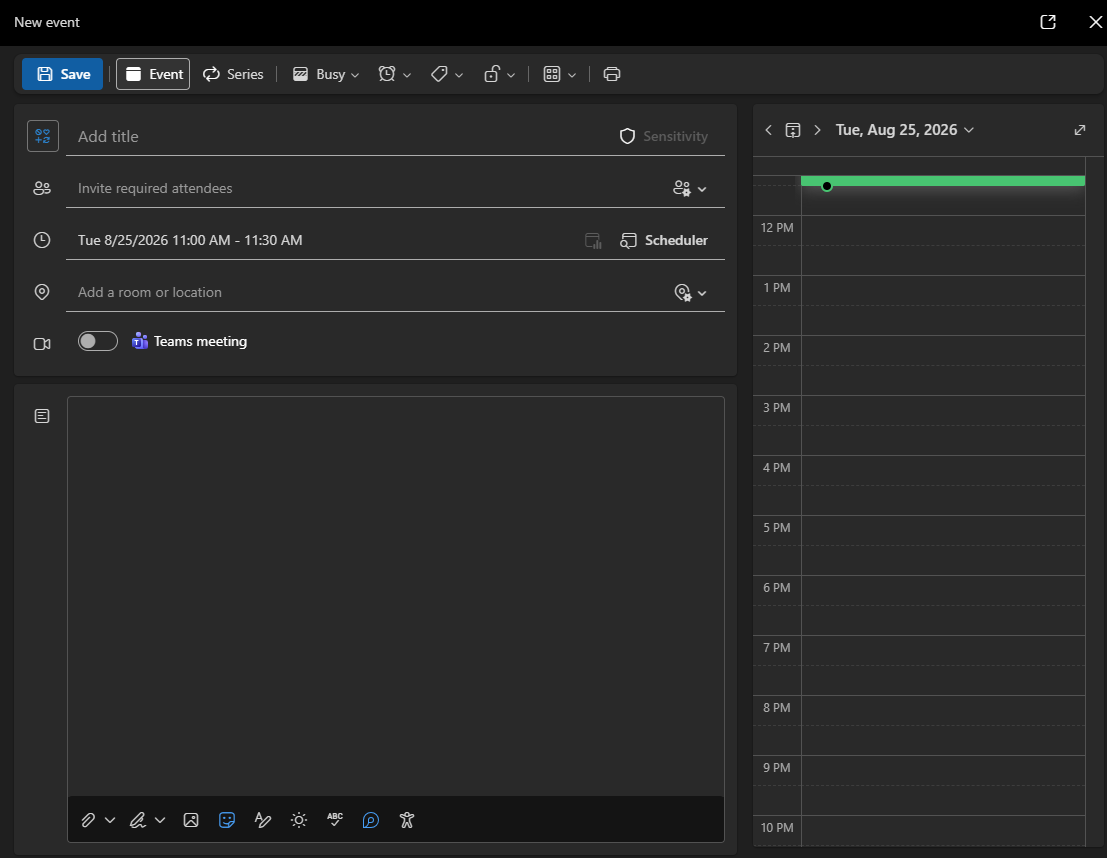
- Add a title.
- Choose the date and time.
- Add attendees if needed.
- Select Save or Send.
Search for Email
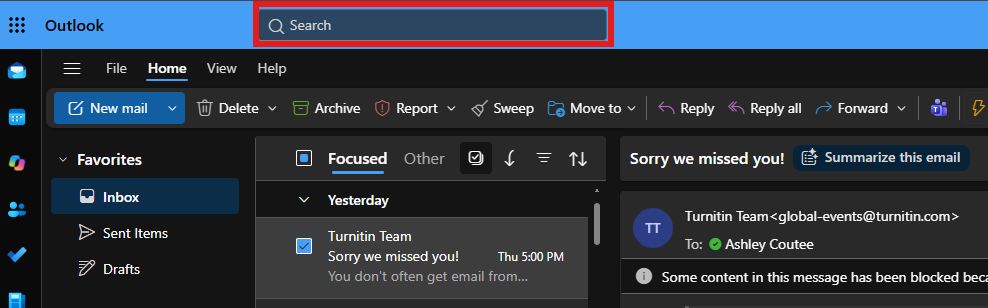
- Select the Search bar at the top of Outlook.
- Enter keywords, a sender name, or a subject.
- Press Enter.
Access Contacts
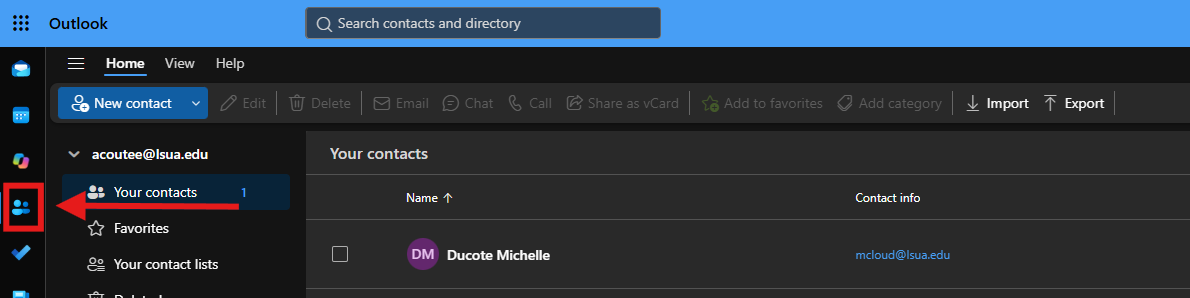
- Select People from the navigation menu.
- Search for individuals within the organization.
- View contact details or send email directly.
Sign Out of Outlook
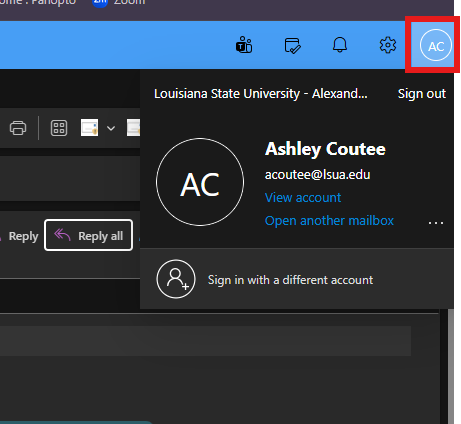
- Select your profile picture in the upper-right corner.
- Select Sign Out. [support.mi...rosoft.com]
Quick Tips
✅ Use folders to organize email.
✅ Flag important messages for follow-up.
✅ Use the Calendar to schedule meetings and manage appointments.
✅ Search is often faster than browsing through folders.
✅ Access Outlook from any device with an internet connection.